min-win.ps1 — Building a silent, rock-solid Windows 11 appliance

I had a goal: to turn a small, modern PC into a completely silent, ultra-reliable backup server. I wanted a machine that could sit in a corner and run for years, sipping power and generating virtually no heat or noise. I could do it with Linux, but for some unrelated reasons, I had to do it on Windows. But a default installation of Windows 11 is anything but quiet.

A modern Windows OS is a bustling metropolis of activity. It’s constantly talking to the cloud, checking for updates, running telemetry services, scanning files with Defender, indexing drives, and running dozens of scheduled tasks. For a desktop, this is fine. For a dedicated appliance that needs to be stable and predictable, it’s a nightmare of unwanted reboots, random CPU spikes, and unnecessary disk I/O.

My solution? I decided to tame the beast. After extensive research and testing, I’ve created min-win.ps1, a comprehensive PowerShell script designed to strip down and harden Windows 10 or 11 into the perfect, minimalist appliance OS. Today, I’m releasing it for everyone.

What is min-win.ps1?

At its core, min-win.ps1 is a powerful configuration tool that systematically disables non-essential features to create a quiet, low-heat, and stable Windows environment. It’s not just another “debloater” that blindly removes apps. It’s an intelligent, reversible hardening script focused on long-term stability for always-on systems.

You can … >>> Read the rest

Phone call recording on OnePlus 13

This is more of a “note to self”, but it may also be useful for others looking for a solution.

Phone: OnePlus 13, OxygenOS 15 (Android 15).
Bought in Israel.
OS version: CPH2653_15.0.0.840(EX01).

No “call recording” function in either the device Settings or the Phone app. The majority of call recording apps produce silent files even if they seem to run.

Good news! “Cube ACR” + “Cube ACR Helper” pair work well for call recording. Requires permission under Accessibility. Records call audio in both directions (incoming + outgoing) natively from the system, not via the speaker. Seems to use the audio channel intended for ASR (automatic speech recognition) uses, part of the accessibility features.

Automating Network Drives: A Scripted Fix for Windows Explorer Hang-ups

To seamlessly access the office server, I’ve mapped several network drives on my Windows laptop. While this setup works perfectly in the office, things get a bit tricky when I work from home — the Windows File Explorer sometimes hangs while trying to access unavailable drives. This has been a known Windows issue for at least a decade, if not longer. Tired of the hassle, I decided to implement a solution.

The fix was both simple and effective, consisting of two key steps:

  • Create a script that automatically maps drives when they’re accessible and disconnects them when they aren’t.
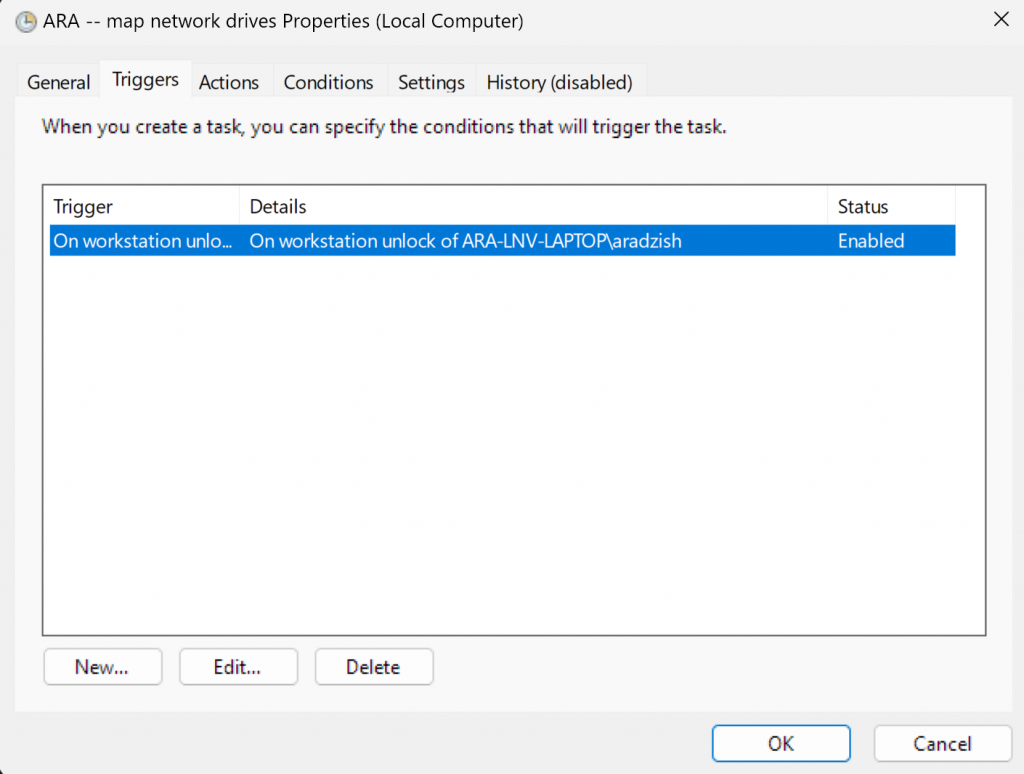
  • Configure the script to run at every Windows log-on or unlock.

Below is a straightforward DOS batch script to accomplish this task:

@echo off
SET ip=192.168.0.99
SET login=username
SET pass=somepassword

ping -n 1 %ip% | find "TTL=" nul 2&1
ECHO %errorlevel%
if %errorlevel%==0 (
    % Map network path as drive X
    net use X: \%ip%\some_path /user:%login% %pass% nul 2&1
) else (
    % Unmap the network path
    net use X: /delete /yes nul 2&1
)

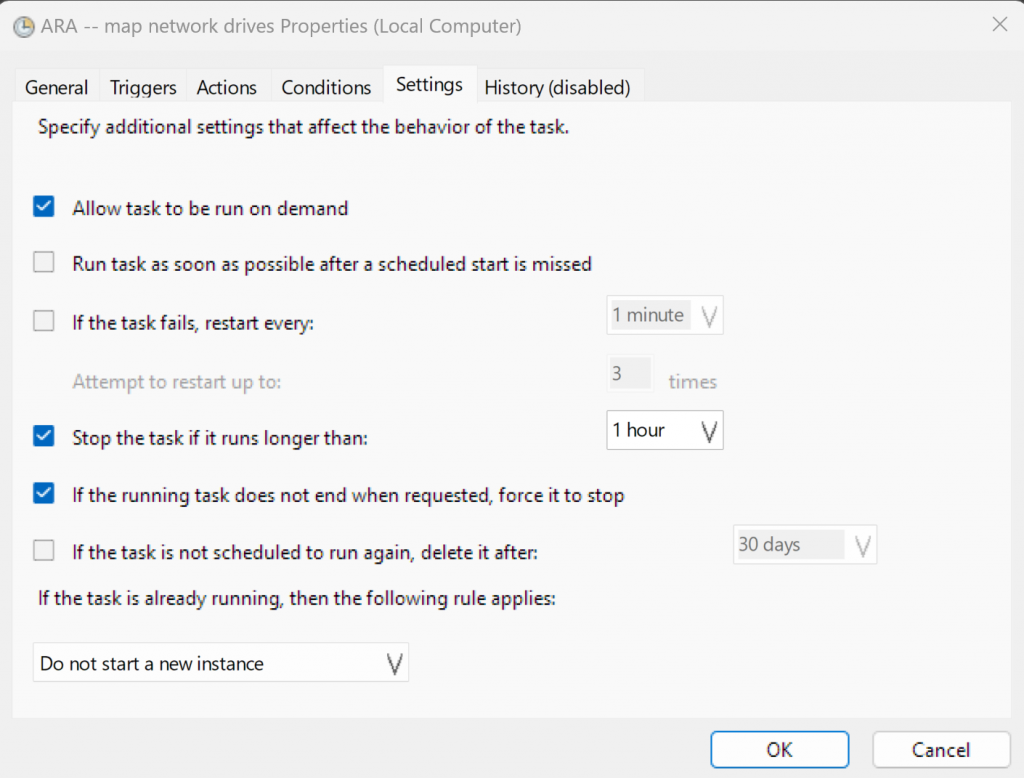
Save this batch file somewhere. Now, you need to add it to the Windows Task Scheduler as a task on each system unlock or log-on:

Arguments:

-WindowStyle Hidden -command "Start-Process cmd.exe -ArgumentList '/c D:\WORK\....\name.bat' -WindowStyle Hidden"

If you did everything correctly, now your File Explorer will never hang up on scanning network drives.… >>> Read the rest

far2l: Far Manager for Linux

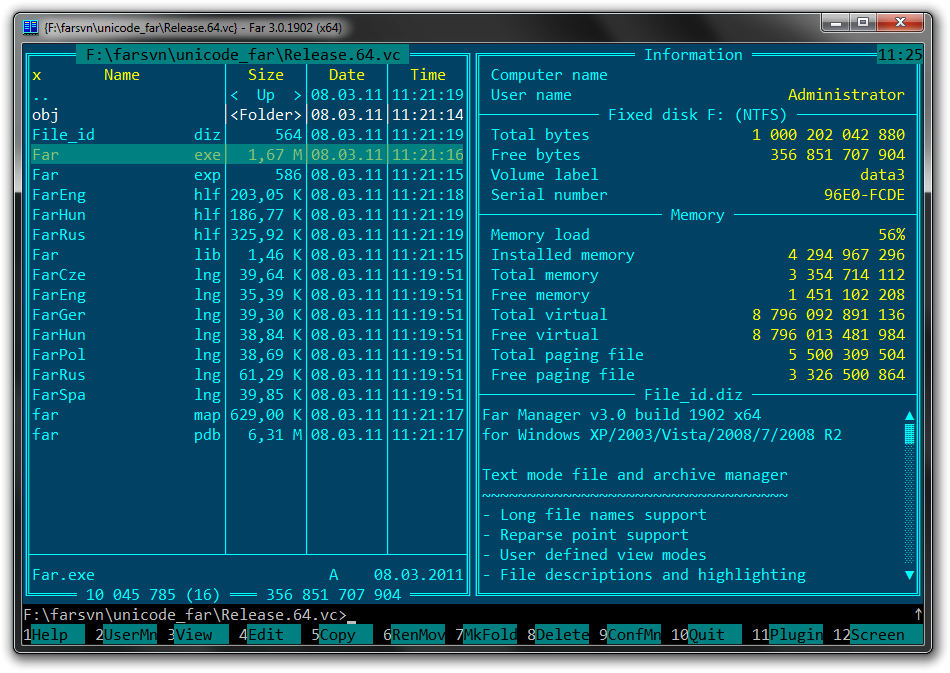
I work mostly with a keyboard. It’s a 30-plus-year habit. The mouse is a secondary tool. I started with Norton Commander back in the 80s, then I used Volcov Commander, then I switched to using CONNECT by Dmitry Orlov, and finally to FAR Manager by Eugeny Roshal on Windows machines.

I use FAR Manager today, too, and I am deeply thankful to the people who continue developing it. FAR Manager became the first tool I install on each new machine, and it is the tool I use the most on a daily basis.

It turns out that FAR has also been ported to Linux, and I’m ashamed that I discovered it only today. The project is called “far2l” and is located here: GitHub – elfmz/far2l: Linux port of FAR v2. It works fine in Ubuntu, and I read it even works on Mac! I know there is MC (MidnightCommander), but I do not like it, so finding the FAR port for Linux was a huge surprise.

Moreover, if you stumble upon a Linux variant in which far2l is not available, there is a good chance that you can still use it by downloading a “portable” pre-compiled binary variant of far2l from here: Releases · spvkgn/far2l-portable

Executable code protection and obfuscation in MacOS

If you, like me, want to distribute a binary executable program for macOS and introduce at least a minimal level of protection—such as hiding text and literals in the binary or obfuscating the code—you may notice that, as of now (end of 2024), few tools are available for this purpose. Unlike Windows, which has numerous EXE protection software options, macOS developers often find themselves at a disadvantage due to the lack of such tools.

This information may be helpful if you are developing in C or C++ and compiling your program using GCC or Clang.

I found “Hikari”, a custom Clang toolchain: https://github.com/HikariObfuscator/Hikari

Although its page says that it is already deprecated as of 2024, it is still usable and has at least a few actively maintained forks.

Hikari is a modified version of LLVM that incorporates several advanced obfuscation techniques to protect software from reverse engineering. Obfuscation in Hikari essentially transforms the code so that it is functionally the same but is much harder for a reverse engineer to analyze and understand. Here’s an overview of the main concepts and techniques involved in Hikari obfuscation:

1. Purpose of Obfuscation

Obfuscation aims to protect intellectual property, software algorithms, and proprietary logic from being extracted or understood through reverse engineering. By making the code harder to read or follow, obfuscation raises the difficulty of tasks like decompiling, debugging, or reconstructing code … >>> Read the rest

Signing your executable using a Code Signing certificate

If you, like me, ever need to sign your executable tool or document using a code signing certificate, this guide may be helpful. In this post, I will tell you how to sign your executable using Certum’s SimplySign.

When searching for code signing certificate providers, one of the options is Certum. They offer some of the most affordable certificates (although still expensive). I needed to sign my freeware tool, AFT SonicDecloner, to distribute it to users and prevent it from triggering Windows notifications like “unverified program” or being flagged by antivirus software.

Certum provides a way to sign applications without any hardware tokens or readers. Instead, they offer a desktop tool called SimplySign, which you can install on Windows. It acts like a hardware reader, making your certificate available in Windows.

Here is the procedure:

1. Purchase a Code Signing Certificate

First, you need to register with Certum and purchase one of their Cloud Code Signing certificates—either regular or EV (Extended Validation). EV implies extended verification and is the most expensive option. The EV certificate cost me €379 for one year (as of the end of 2024).

2. Complete Identity Verification

Once purchased, you will need to go through an identity verification process, during which you will be requested to present various documents proving your identity. You will also need to pass a live presence test—an automated … >>> Read the rest

AFT SonicDeCloner FREE — The Ultimate Acoustic De-Duplication Solution

I am thrilled to introduce AFT SonicDeCloner, a free tool by AudioWatermarking.com for acoustic audio de-duplication. AFT SonicDeCloner is built to recognize acoustically similar audio files, or “clones,” across various formats by using advanced, patented acoustic fingerprinting technology. Unlike traditional file comparison methods, this tool listens to audio files just like the human ear, identifying duplicates originating from the same performance or recording, regardless of file compression or format.

Key Features:

  • Human-like Acoustic Detection: Matches audio based on sound content, not just byte data, id3 tags or meta information.
  • Format-Agnostic: Compatible with all major audio formats.
  • Robust Performance: Detects duplicates even in altered versions, including pitch shifts or distortions.
  • ABSOLUTELY FREE for Non-Commercial Use: Ideal for personal audio management.
  • Cross-Platform Compatibility: Works on Windows, Mac OS, and Linux.
  • Standalone and Offline: Does not require installation and performs without internet connectivity.

Who It’s For: Designed for audiophiles, DJs, sound engineers, and music enthusiasts, AFT SonicDeCloner helps manage audio collections, removing unnecessary duplicates for a more organized, streamlined library. If you value the quality and organization of your audio collection, AFT SonicDeCloner is the ultimate solution to help you achieve a clean, efficient, and enjoyable music library.

Download AFT SonicDeCloner today at www.AudioWatermarking.com/sonicdecloner and experience acoustic de-duplication that brings clarity to your collection.

Permanently disabling Windows Defender “real-time protection” in Windows 11

If you, like me, do not want your Windows 11 computer’s CPU resources spent on antivirus processes and wish to disable Windows Defender completely, you may have found various methods to disable its components via Group Policy (gpedit.msc) and the Windows Registry (regedit.exe). However, starting from version 23H2, Windows will “self-heal” and restore any such settings upon restart. This can be frustrating, and I disagree with Microsoft deciding what my computer does on my behalf.

Here is how to permanently disable the real-time antivirus protection in Windows 11:

Create a folder on your disk:
For example, C:\Scripts.

Create a new PowerShell script file:
Open Notepad or any text editor.
Save the file as turn-off-rt-protection.ps1 in the C:\Scripts folder.

Add the following line to the script:
Set-MpPreference -DisableRealtimeMonitoring $true

Configure the script to run at startup using Task Scheduler:
Open Task Scheduler (you can search for it in the Start menu).
Click on “Create Task” in the right-hand Actions pane.

General Tab:
Name: Enter a name for the task (e.g., “Disable Real-Time Protection”).
Security options: Check “Run with highest privileges”.

Triggers Tab:
Click “New…” to create a new trigger.
Begin the task: Select “At log on”.
Settings: Choose “Any user” or specify a user.
Check “Delay task for:” and set it to 1 minute.
Click “OK”.

Actions Tab:
Click “New…” to create … >>> Read the rest

Avoid charges for AWS Elastic IP’s — How to automatically update the IP address of a DNS record of a domain defined in Amazon Route53 from an EC2 instance

Your EC2 instance is assigned a fixed public IP from a list of Elastic IPs. But Amazon charges a considerable amount of money for the Elastic IP. Is there a way to automatically update the IP address of a DNS record defined in Amazon Route53 from the EC2 instance? Yes, there is, and it’s not hard. You can write a “bootstrap” script that is executed when the instance is started. The script will update the public DNS record according to the public IP of the instance.

1. Allow EC2 changing Route53 records

Detailed instructions for creating an IAM role

Log into your AWS management console.

Proceed to AIM (“Identity and Access Management”). Click on Roles. Click on Create role.

Select AWS service as the trusted entity type.

Select EC2 for the Use Case, then select EC2 (“Allows EC2 instances to call AWS services on your behalf”)

In the Permission policies, select AmazonRoute53FullAccess.

Click on Next: Tags (optional step, you can add tags to organize and manage your role).

Click on Next: Review.

Name your role. Choose a name that makes sense for its purpose, like EC2Route53UpdateRole.

(Optional) Add a description that explains the role’s purpose, like “Allows EC2 instances to update Route 53 DNS records.”

Review your choices and click on Create role.

Finalize and use the Role

After creating the role, … >>> Read the rest